How to import HDFC, ICICI, and SBI bank statements into PlainFinance (no bank login needed)
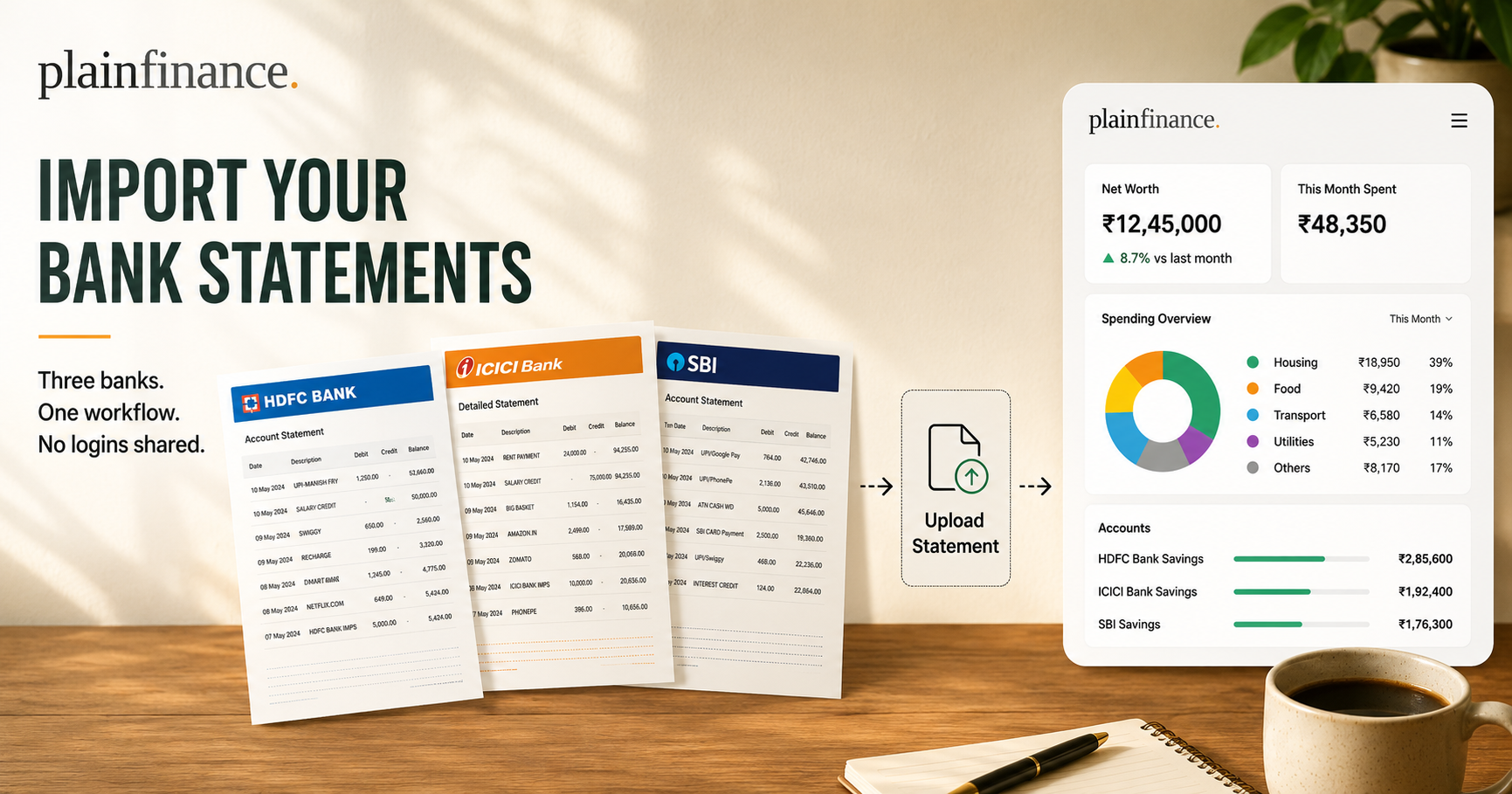
Your bank already gives you what you need
Open your bank's website. Log in. Find the section that lists your transactions, pick a date range, and click export. HDFC will hand you a CSV or Excel file. ICICI will hand you an Excel file. SBI will hand you a CSV. No integration, no third-party aggregator, no permission grant that sits in some service forever — just a file your bank has been willing to give you for the better part of two decades.
PlainFinance was built around that fact.
By the end of this guide you'll have HDFC, ICICI, and SBI statements flowing in, and you'll know exactly which transaction types to double-check after every import.
Why CSV instead of bank linking?
Bank linking sounds convenient until it isn't. Third-party integrations change ownership, lose support, or disappear entirely. CSV exports tend to survive all of it.
There's also the privacy beat. Linking your bank means handing read access — and sometimes more — to a chain of services you didn't pick and can't audit. A personal finance app without bank linking sidesteps that whole arrangement. You choose what data to export and when to import it. Nothing is brokered, sold, or quietly trained on.
CSV is boring. It doesn't break, doesn't expire, doesn't need permission. Boring is the point. Boring is what survives.
We wrote a longer version of this argument when we launched — why we built PlainFinance.
What PlainFinance does not do
- Does not connect to your bank.
- Does not store your banking credentials.
- Does not need ongoing access to your accounts.
- Does not rely on third-party aggregators sitting in the middle.
The file comes from your bank. It goes from your computer into PlainFinance. Nothing sits between the two. The source data stays yours, and so does the decision about when, how, and whether to share it.
What you'll need
Nothing fancy. Before you start, make sure you've got:
- Net banking login for each bank you want to import — use desktop net banking, not the mobile app. Desktop exports are cleaner.
- About 5 minutes per bank the first time. Under 2 once you know the path.
- A PlainFinance account (/signup).
- A date range in mind. Pull a few months for your first import — enough to see patterns, small enough to catch mistakes.
Exporting from HDFC
HDFC's net banking is the easiest of the three. Once you know where to look, the export takes about thirty seconds.
Sign in and head to the account statement or account enquiry area — the part of the interface where you'd normally check what's gone in and out. That's where the download lives.
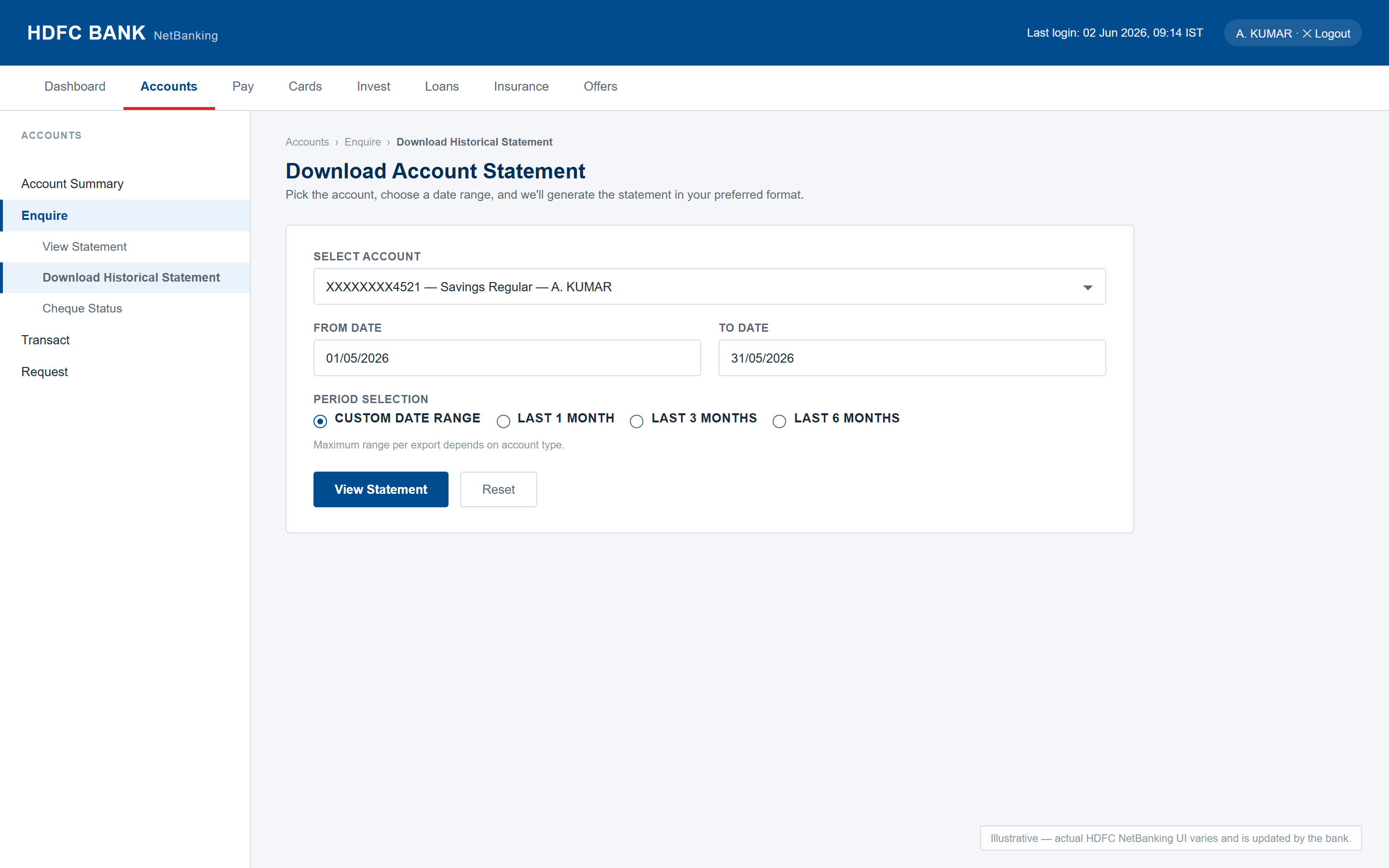
When you get the choice of format, pick Excel (.xls). Not PDF. PDF looks fine on screen and falls apart the moment you try to do anything with it. HDFC's Excel export is the cleanest of the three banks we'll cover — column headers are sensible, dates are parseable, and there's almost no cleanup needed.
A note on the date range: HDFC caps each export at a few months at a time. So if you're pulling a year of history, you'll do it in a handful of passes. Mildly annoying. Not a real obstacle.
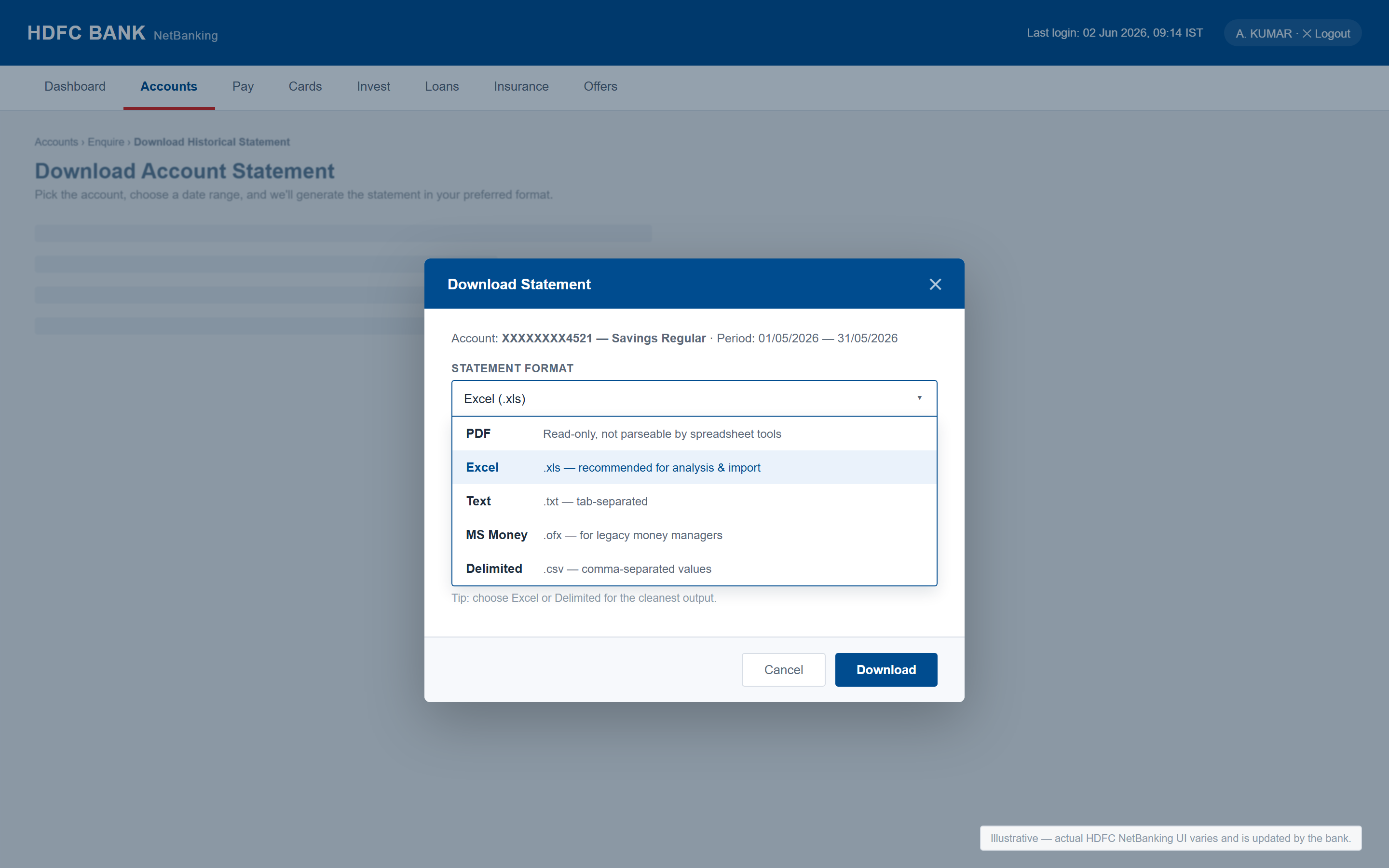
One quirk worth flagging. HDFC puts debit and credit in two separate columns instead of one signed amount column. If you've used tools built around US or UK banks, the file will look unfamiliar at first. PlainFinance handles this automatically — you don't need to reshape anything — but it's the kind of thing that throws off a generic importer.
Save it as hdfc-YYYY-MM.xls. Your future self will thank you.
Exporting from ICICI
ICICI's net banking lays things out differently from HDFC, but the export lives in roughly the same neighbourhood. Look for the statement or transaction-history area inside the accounts section.
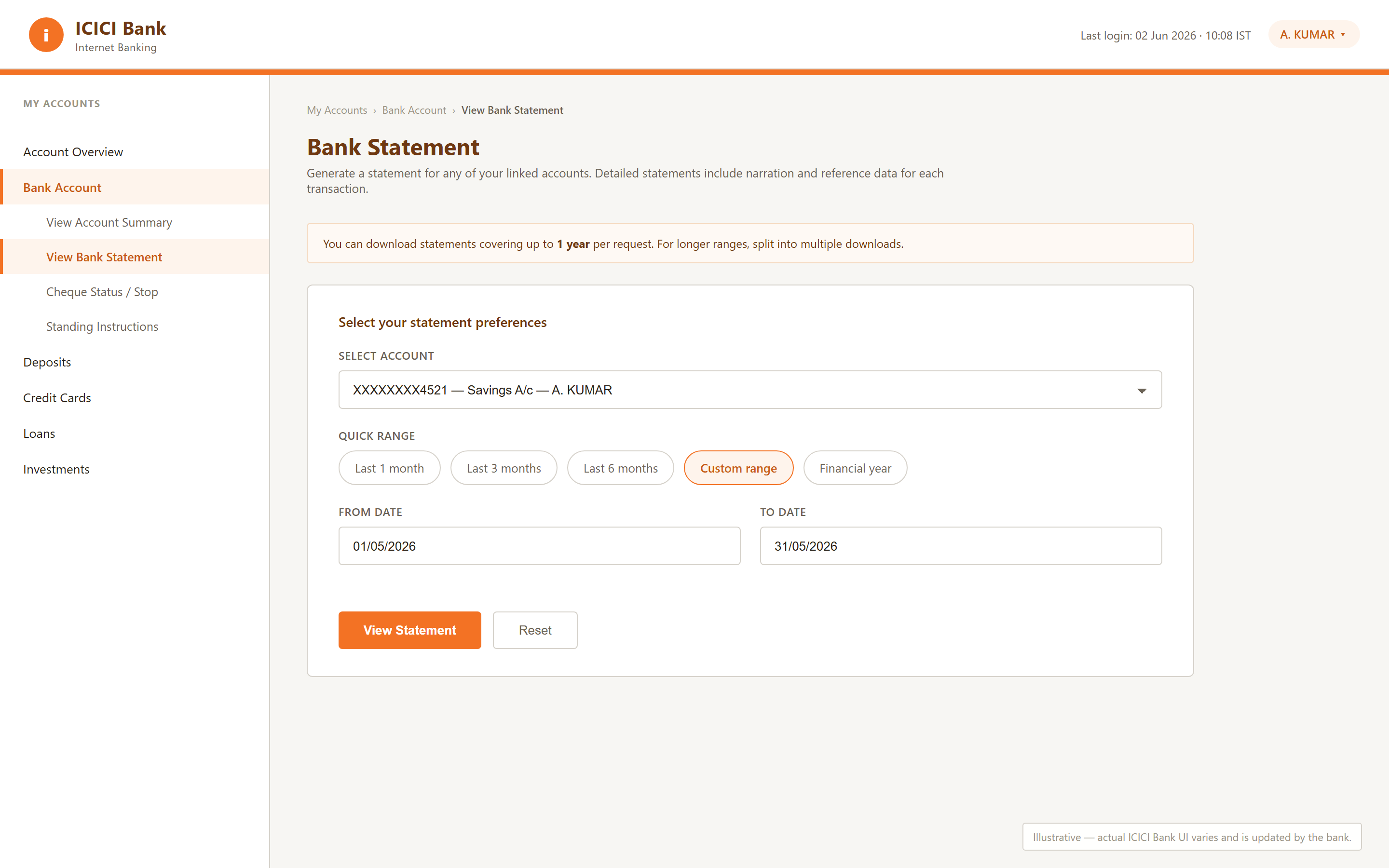
Pick Excel as the format.
Now the part that matters. ICICI gives you two options: Quick Statement and Detailed Statement. Quick is faster. Quick is also wrong, at least for our purposes. It strips out the narration text — the messy free-form description field that tells you whether a debit was a UPI payment to your landlord or a card swipe at a pharmacy. That field is how PlainFinance figures out what each transaction actually is.
Always pick Detailed. Always. This one choice saves you about an hour of manual cleanup down the line.
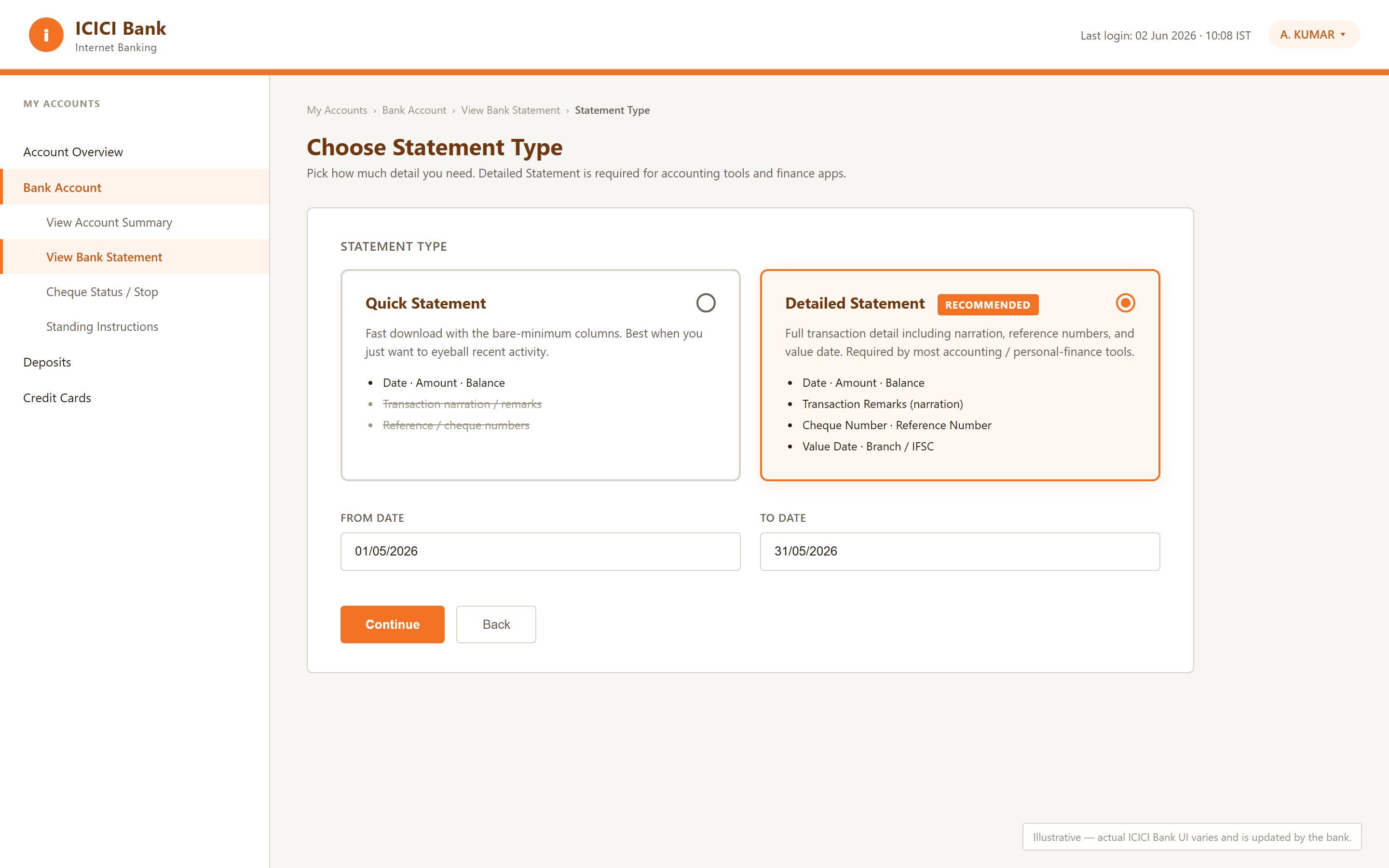
The date range has a cap, similar to HDFC. If you're pulling several months, you may need to do it in chunks. Annoying, not fatal.
One thing worth flagging: ICICI uses a single amount column with signed values — debits are negative, credits are positive. HDFC splits them across two columns. You don't need to do anything about this. PlainFinance auto-detects the layout when it reads the file.
Save it as icici-YYYY-MM.xls and move on.
Exporting from SBI
SBI's net banking is the slowest of the three. Pages reload more than they should, sessions time out faster than feels reasonable, and the layout has the texture of software that was last redesigned a long time ago. Log in, accept that this part will take a few minutes longer than the others, and find your way to the account statement area.
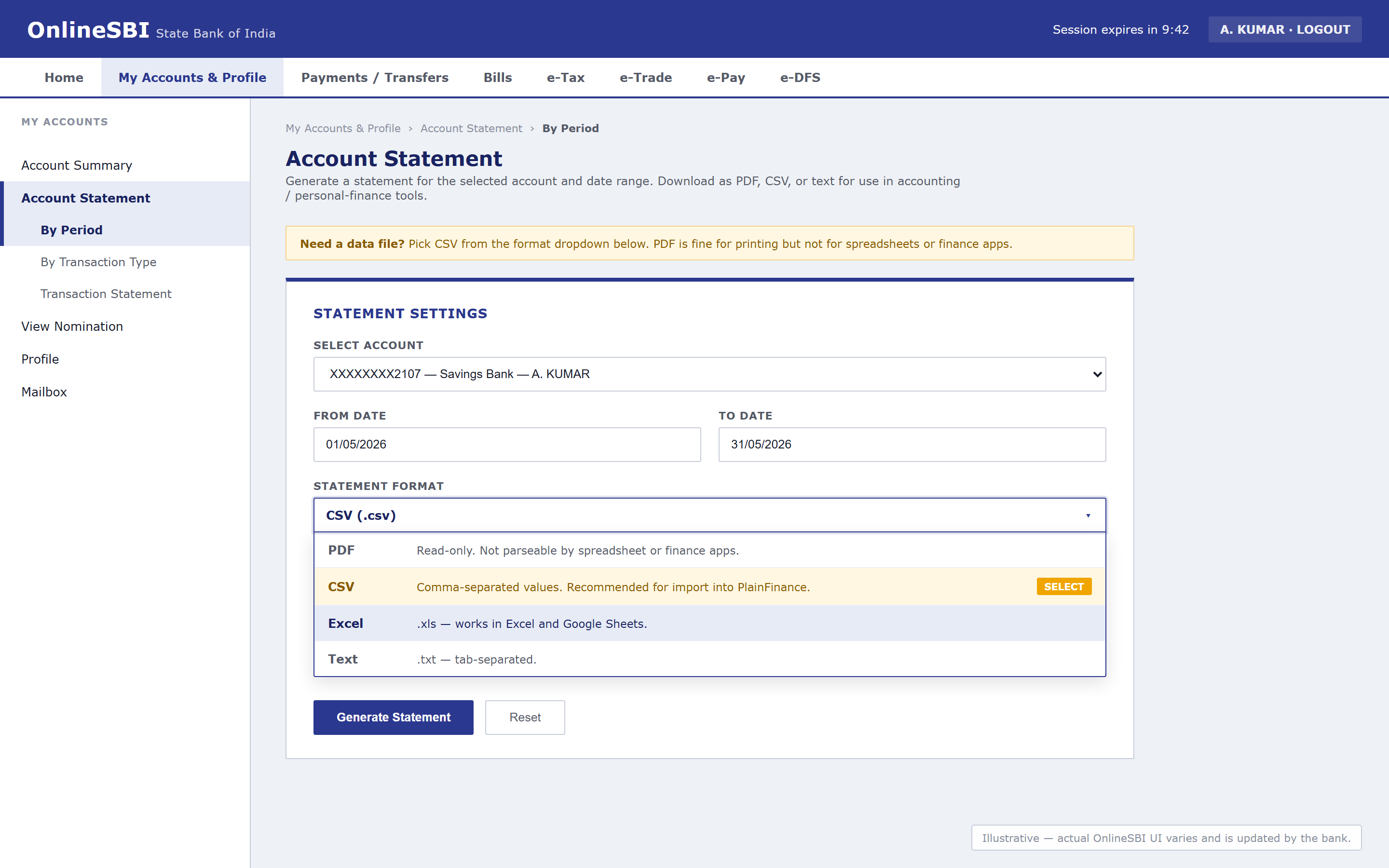
Quirk #1 — the PDF-only trap. SBI's default export, especially inside YONO and on some account types, is PDF. PDF is the worst possible format for a budgeting tool — it's built for printing, not parsing, and the rows tend to fall apart the moment anything tries to read them. Switch the format selector to CSV (or .txt, or whichever delimited option is offered). If your screen only shows PDF, you're on the wrong export. Look for "Transaction statement" rather than "Account statement" — that's the one that gives you a real data file.
Quirk #2 — UPI-merged descriptions. SBI mashes the UPI counterparty, reference number and remarks into a single Description field, with inconsistent separators. PlainFinance parses the common patterns automatically, but SBI is the bank where some rows will need a second look later. We'll come back to that.
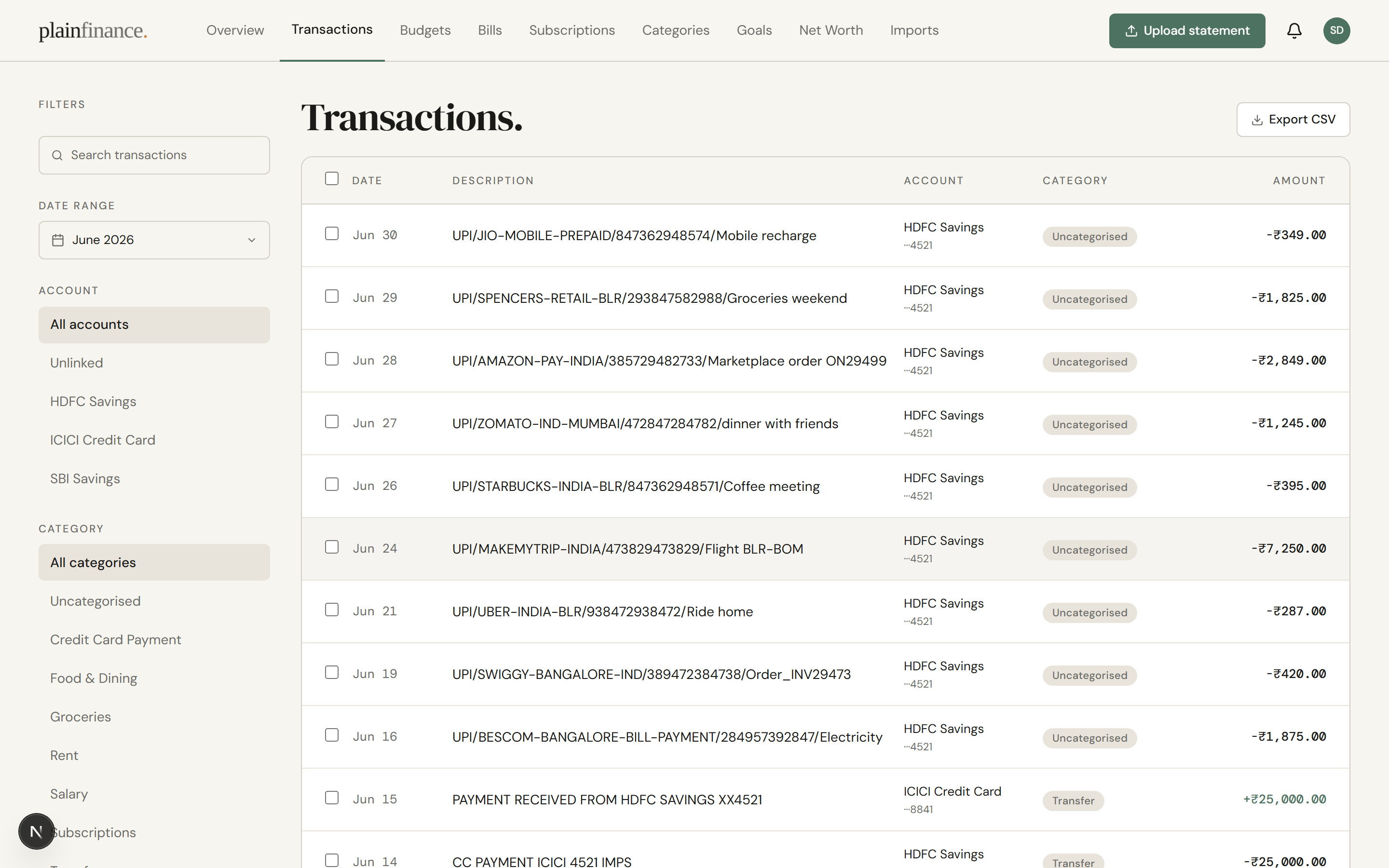
Save the file as sbi-YYYY-MM.csv and move on.
The three banks at a glance
Three banks, three slightly different statement habits — and one place they all end up.
| Bank | Best format | Auto-detected by PlainFinance | Common quirk |
|---|---|---|---|
| HDFC | Excel | Yes | Separate debit/credit columns |
| ICICI | Excel | Yes | Quick Statement lacks detail — pick Detailed |
| SBI | CSV | Yes | UPI descriptions can be messy |
All three land in PlainFinance the same way. Here's what that looks like.
Importing into PlainFinance
You've exported your CSVs. Here's what actually happens when you bring them in — the workflow that makes a personal finance app without bank linking practical day to day.
Upload
Drag one file, or drop several at once, into the Import screen. PlainFinance reads the shape of each file and figures out which bank it came from. There's no dropdown asking you to pick HDFC versus ICICI versus SBI — that's the kind of decision software should make on your behalf.
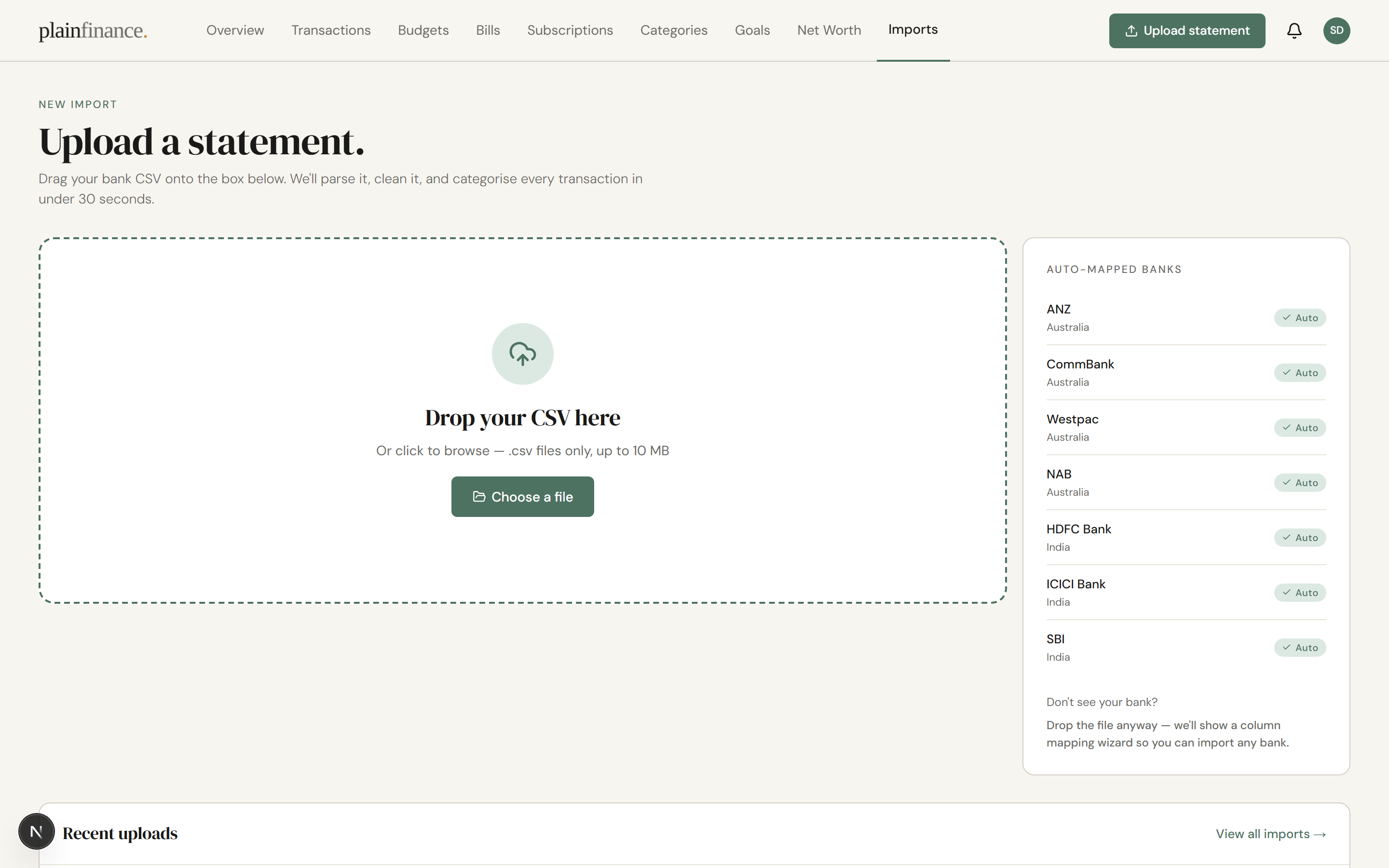
Pick the account
Tell PlainFinance which account this statement belongs to. If the account doesn't exist yet, you'll create it here.
When you do, use the closing balance from the period just before this statement as the opening balance. PlainFinance reconstructs your running balance forward from that number, so getting it right once means every later import lines up cleanly.
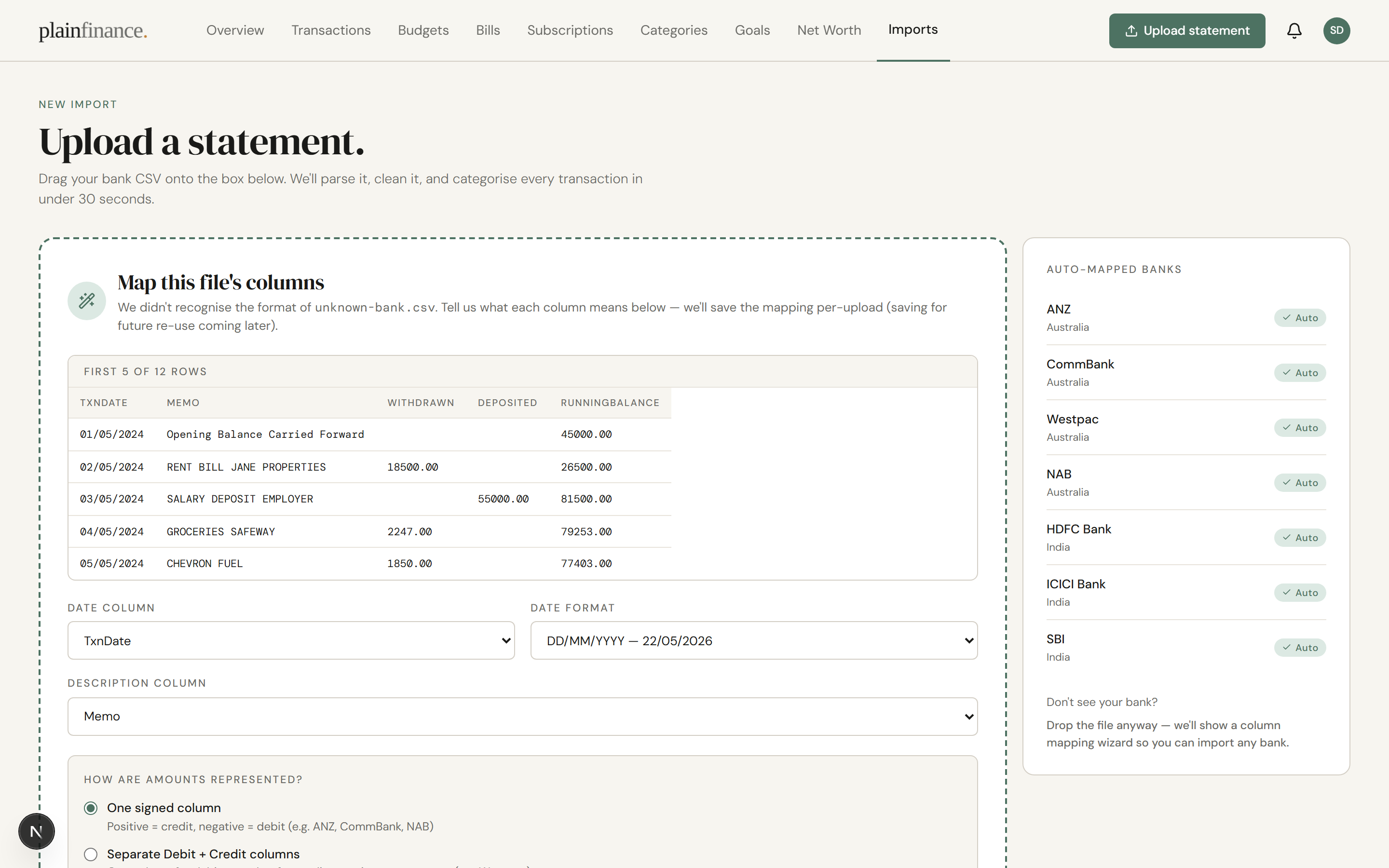
Column mapping
For supported banks, mapping happens automatically. You won't see this step.
For anything unrecognised — most credit-card statements land here, along with smaller banks — you get a column-mapping screen. Point at the date column, the amount column, the description. Every bank's format gets normalised into one consistent transaction model, so once you've mapped a source, you stop thinking about its shape.
Duplicate detection
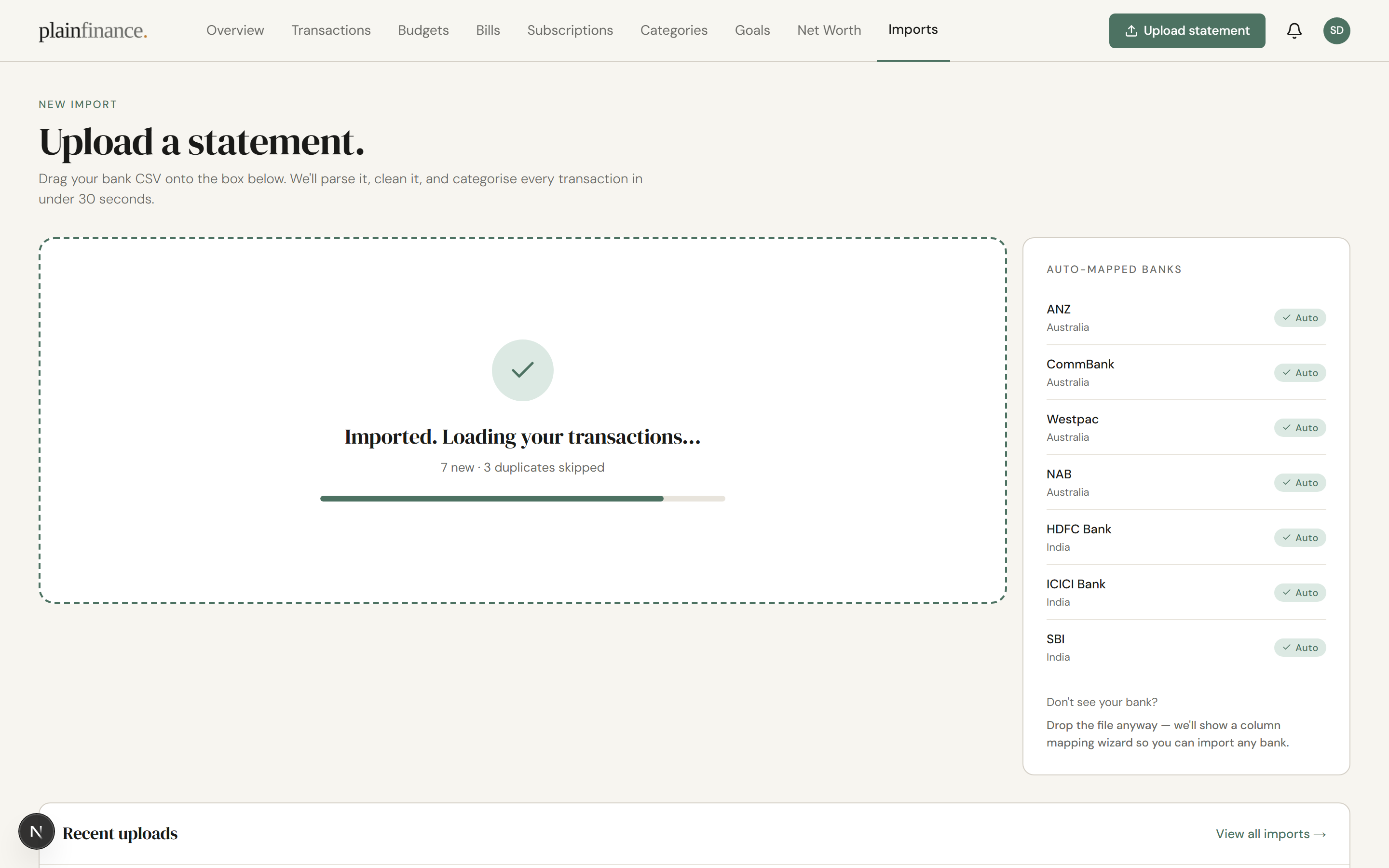
PlainFinance compares transactions using their date, amount, and description to spot overlaps before they're imported. Re-import a file that covers a period you've already brought in, and the overlapping rows are skipped before anything is written.
After the import finishes, the done screen shows a count of rows imported and rows skipped as duplicates. No silent doubling, no review prompt to manage.
Transfer matching
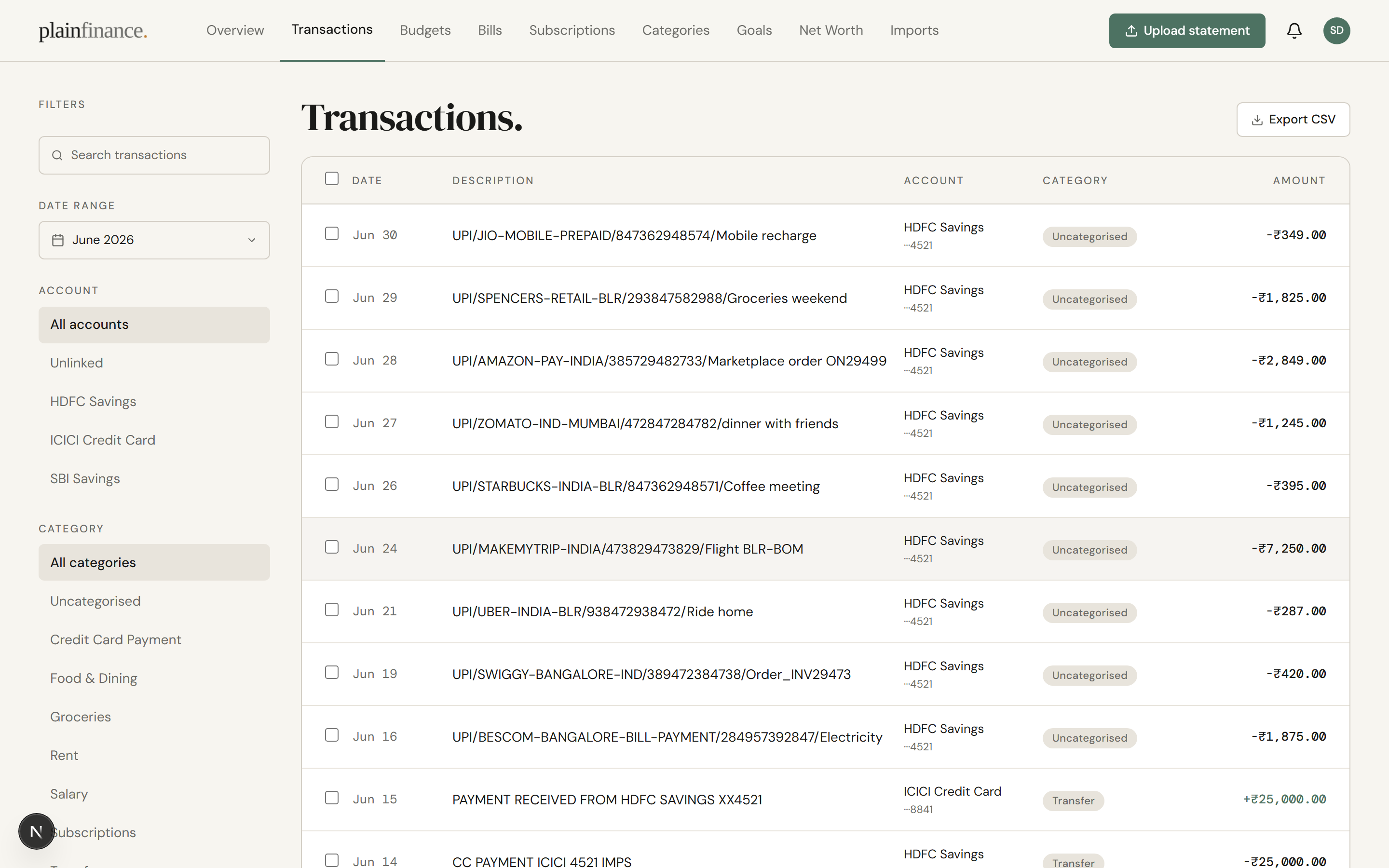
When a debit from one account matches a credit into another within a couple of days, PlainFinance automatically pairs the two legs as a transfer. Both rows get categorised as "Transfer" and excluded from your income and expense totals — neither side counts as money in or money out.
This sounds small. It isn't. Treating transfers as income is the single most common reason other tools quietly inflate what you earn — and once that number is wrong, every chart downstream of it is wrong too.
Sometimes the auto-pair gets it wrong, or misses a leg that landed outside the window. Open the transaction from the detail panel and re-categorise it, or manually link the matching pair — both options live in the row's detail view.
The edge cases — split transfers, foreign-currency moves, credit-card payments — we'll cover in a future guide.
Out-of-order months
Life is messy. Statements arrive late.
If month 2 lands before month 1, PlainFinance accepts it. When month 1 finally arrives, the chain backfills automatically and every running balance and downstream chart recomputes. You don't redo anything.
Categorisation is manual today. We'll cover the workflow in a future guide.
The four rows that trip everyone up
Most rows in an export are uneventful. A handful of categories almost always need a second look, and they're the same ones every month. Learning to spot them in advance is what turns categorising from a chore into a five-minute pass.
UPI bundles
Pay the same chai stall three times in a morning and your head remembers one tea break. The export remembers three rows, sometimes with slightly different timestamps and reference IDs. If you want to track the morning as one thing, merge them in your notes column. If you want the granular truth, leave them split. Just don't be surprised when "Rs 180 at the cafe" shows up as six rows across the week.
Inter-account transfers
Money moving between accounts you own is not spending — that's the easy case. The edge cases are where it gets messy. A partial transfer, where you moved Rs 40,000 but only Rs 38,000 cleared because of a daily limit. A transfer initiated on the 31st that settles on the 1st, splitting across two months. Two legs that land four days apart, outside whatever auto-match window you've set. Each of these needs a manual tag, because no rule will catch all three cleanly.
Credit-card payments
The classic double-count. Your savings account shows a Rs 24,000 debit to the card issuer. Your card statement shows the forty purchases that made up that Rs 24,000. Untagged, the same money looks like an expense in one place and gets re-counted as forty more expenses in another.
The fix: tag the savings-account debit as a transfer to the credit-card account. The card purchases stay as your real expenses. The payment itself stops counting.
Refunds and reversals
A refund from last month's return lands as a credit this month. Untagged, it reads as income. Tag it against the original expense category — the net spend for that category drops, which is what actually happened.
We'll go deeper on transfer logic in a later post.
Make it a monthly habit
Pick a day. First Sunday of the month works for most people, but any anchor you'll actually keep is fine.
Fifteen minutes is enough. Export from each bank, drop the files in, scan the import summary, confirm the transfer pairs PlainFinance flagged, and glance at the rows that always need attention.
That's the whole loop.
The point isn't budgeting discipline. The point is that a month of transactions is small enough to recognise — you remember the trip, the dentist, the refund. Six months in, you don't. A year in, it's archaeology.
Monthly is the cadence where your money still feels like yours. Quarterly is already a project. Annually is a cleanup job you'll keep postponing. Importing twelve months at once turns a ten-minute review into a weekend project.
Do it once a month and you never have to do it the hard way.
(We'll cover the full fifteen-minute review in its own post soon.)
Troubleshooting
-
"My HDFC export is a PDF." You're on the wrong screen. The default download on most HDFC statement pages is PDF — look for the format dropdown and switch it to Excel or CSV, then re-download. The PDF won't import.
-
"ICICI export has no descriptions." You picked the Quick statement. Go back and re-export using the Detailed option — that's the one that includes the narration column the importer needs.
-
"SBI shows PDF only." You're probably on the Account statement summary, which is PDF-locked. Switch to the Transaction statement screen instead; that one offers CSV.
-
"Duplicate count looks too high." Your export range overlaps with a previous import. The duplicates were detected and skipped, not added twice. Nothing to clean up.
-
"Transfer wasn't auto-matched." Auto-matching needs the two legs to fall inside a short window and to match on amount exactly. If either is off, the match won't happen — open the row's detail panel and link the matching transaction by hand, or re-categorise it as Transfer if the counterpart is in another account.
-
"Balance is off after importing out-of-order months." Running balance is computed in order. Open the account and recompute the balance from the account tools menu — it'll re-walk the transactions from the start and resettle.
Outside India
The walkthroughs above are India-first because HDFC, ICICI, and SBI cover most of the people using PlainFinance today. If you bank elsewhere, the import flow is the same. Only the export screenshots change. Pull the statement, drop it in, get on with your day.
PlainFinance is a personal finance app without bank linking. Stop maintaining bank connections; start maintaining a monthly habit. Start here.
Keep reading
All articles →Best YNAB Alternatives in 2026 (Free Options That Don't Require Bank Access)
YNAB's price hikes and mandatory bank connections have pushed a lot of people to look elsewhere. Here's an honest look at the best alternatives — including free options that work without linking your accounts.
Why you should track net worth, not just spending
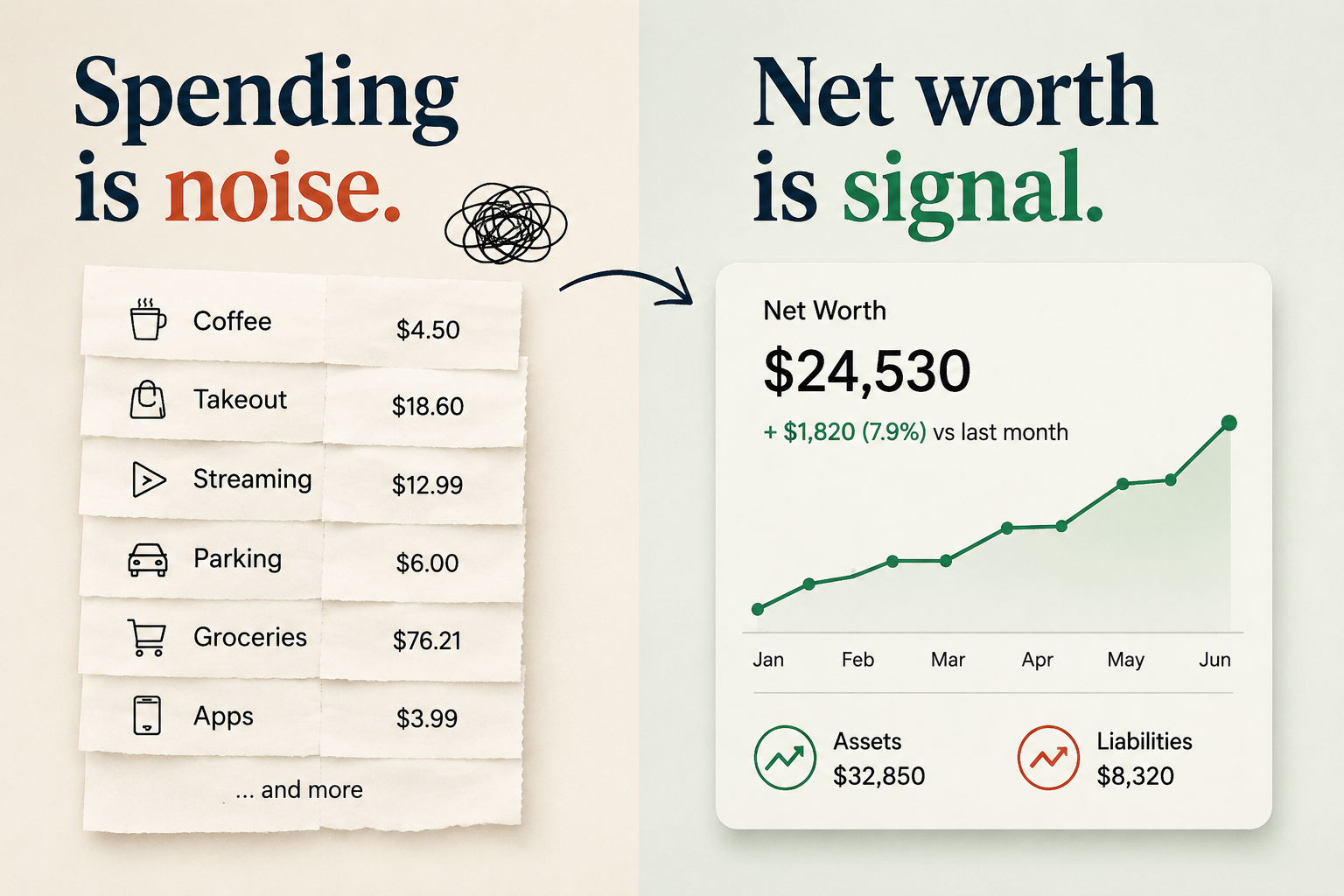
Watching every small expense is exhausting and often misses the point. Net worth is the number that tells you whether your money is actually moving in the right direction.